The short version
Want the picks without hosting the shoot? That is what the Studio plan's proofing link does: a password-protected gallery of watermarked proofs that deletes itself after the deadline. See it on the pricing page.
Client proofing software lets a client pick their favourite photos from a shoot. Plenty of tools do it, and most proofing frustration comes from the same place: the tool was built to sell prints and deliver files, and the selection step was bolted on. So the client has to make an account, the picks come back as a list you paste into Lightroom by hand, and the gallery sits on your storage bill for years.
None of the tools here is bad. They are built for different jobs. So instead of ranking them, this guide starts with the four things that decide whether a proofing tool will suit you, then covers nine tools against them. One of the nine is ours. We build Contact Sheet Studio, and its entry is held to the same standard as the rest.
Below, we cover:
- 4 factors to consider when choosing a proofing tool
- How Contact Sheet Studio handles each of them
- A quick comparison table
- 8 other proofing tools worth considering
- How to get the picks back into Lightroom or Capture One
- Which tool fits which kind of photographer
4 factors to consider
Factor #1: What does the client have to do? This is the one most comparisons skip, and it is the one clients complain about. Some tools let anyone with the link click a heart. Others ask for an email first, so the list can be found again. Others want a full account. The more a client has to do before their first pick, the more often you will chase them. Also check whether they can leave a note on a specific frame, and whether you can set how many they may pick. A cap stops a 15-image package becoming 40. A required count stops a client sending 6.
Factor #2: How do the picks get back to you? A list of hearts in a web page is not a selection. You need those frames in Lightroom or Capture One. Tools do this one of three ways. A plugin syncs the favourites into your catalogue. Or the tool gives you a list of filenames to paste into Lightroom's filter. Or it gives you nothing but the gallery, and you read the picks off the screen. The filename method works, but only if your filenames have no spaces and match between the gallery and the catalogue. We explain it further down.
Factor #3: What leaves your computer, and what protects it? Every hosted gallery uploads your full originals. That is fine for delivery, but during selection it means unedited, unreleased frames are sitting on a server behind a watermark that often does not apply to the download. Check whether the watermark covers the original, whether downloads can be switched off, and whether a password is a real gate or just a hidden link. The alternative is to upload less: small watermarked proofs, or no upload at all.
Factor #4: What does it cost, now and a year later? The selection round lasts a week. The gallery lasts as long as you leave it, and every hosted tool charges by storage. Setting an expiry date on most of them hides the gallery but keeps the files on your bill. So look at the free tier, the cheapest plan that includes proofing, and what happens to old galleries: hidden, archived for a fee, or deleted.
With those four laid out, here is how the nine tools compare, starting with ours.
Contact Sheet Studio
Best for. Photographers who want the client's picks back without uploading the shoot, and who deliver the finished files some other way.
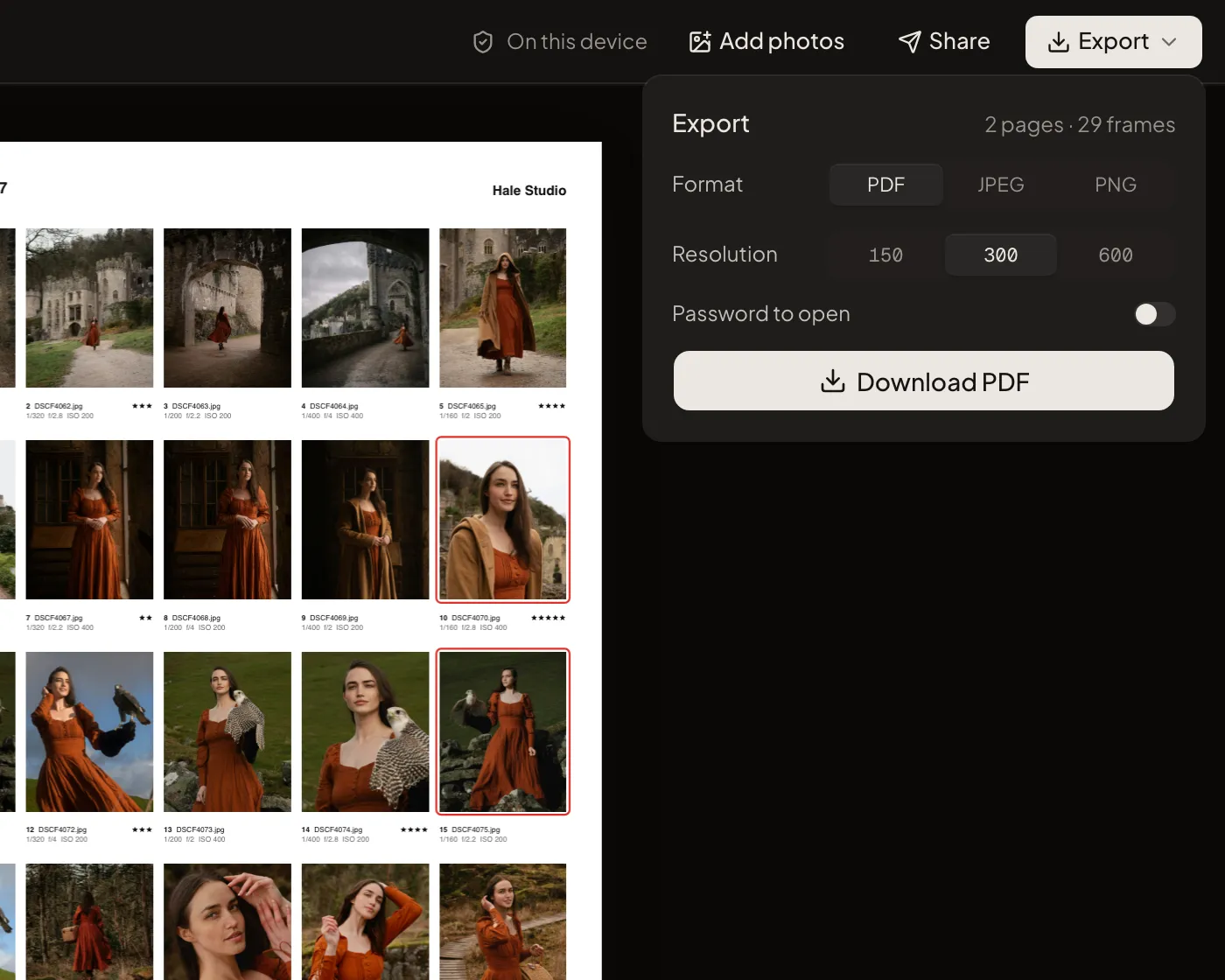
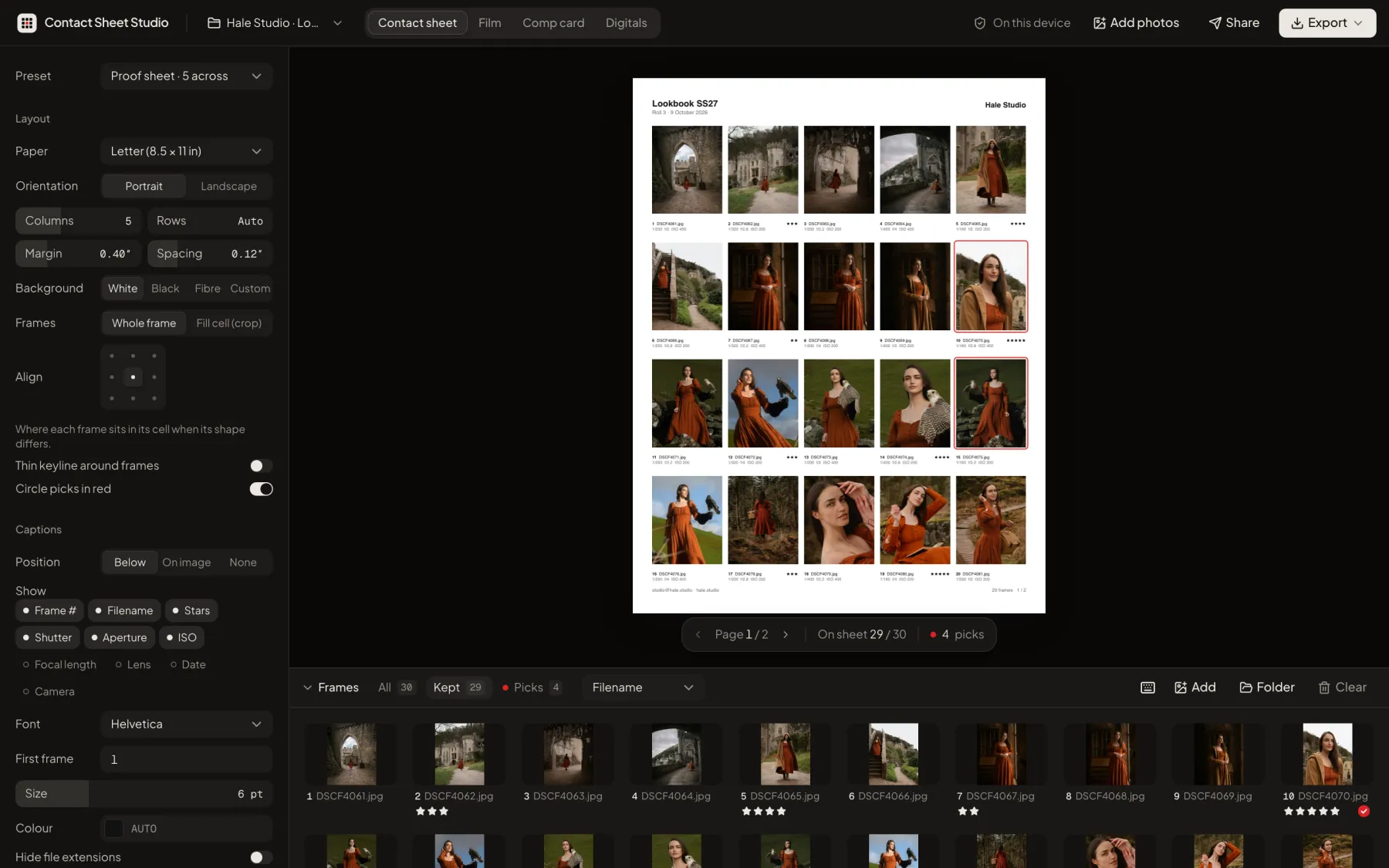
Contact Sheet Studio is a free contact sheet, comp card and shot list maker that runs in the browser. Your photos are laid out and exported on your own device. The Studio plan adds a proofing link, and it is easiest to explain by walking through the four factors.
#1: Link and password, nothing else. You send the client a link and a password. They open it in a browser, mark their picks, and press Send with their name. No account, no email required. You can let them add a note to each pick, and you can cap how many they choose.
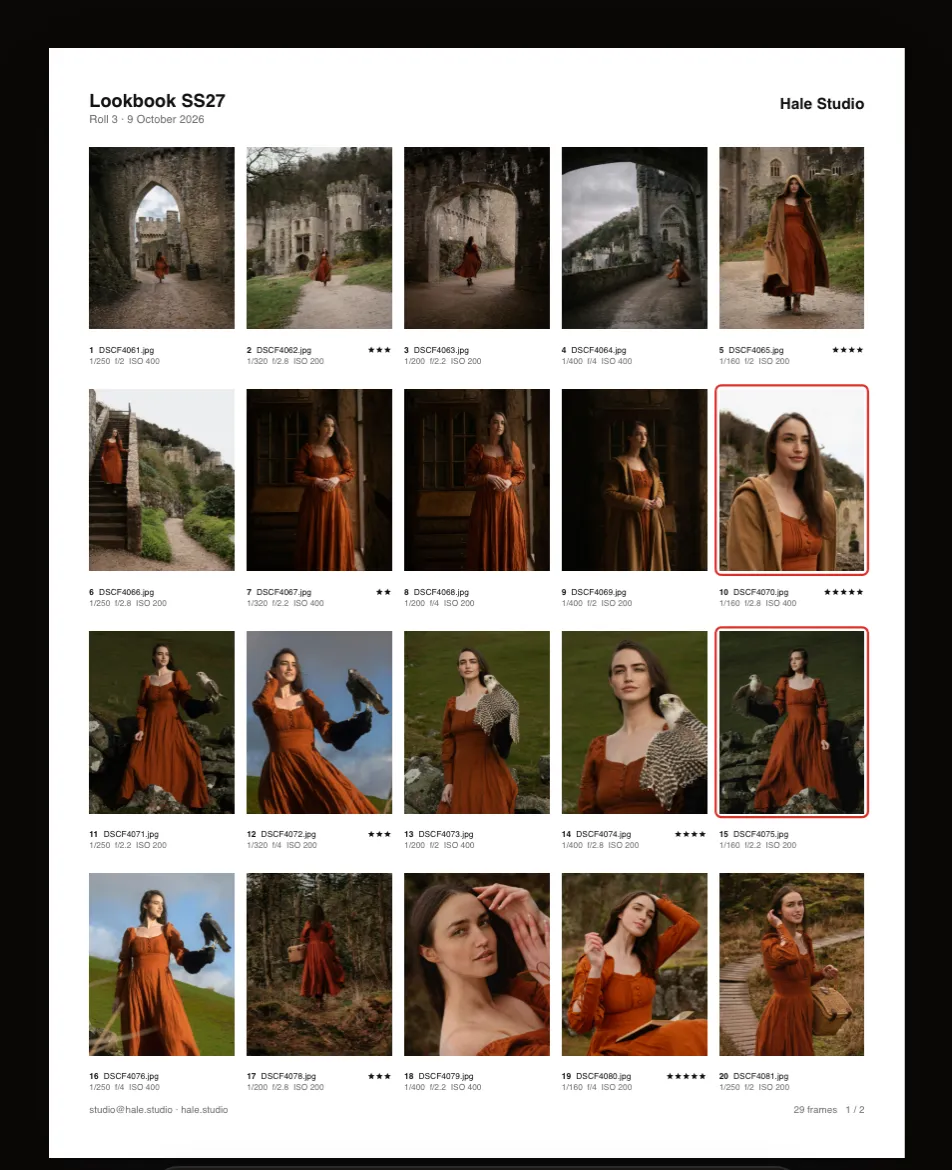
#2: Picks land in the project they came from. When the client presses Send, their picks appear next to the sheet. One button flags those frames, so they are outlined on the sheet and in the frame strip. Another copies the filenames for Lightroom or Capture One. Clients can resend if they change their mind, and every submission is kept.
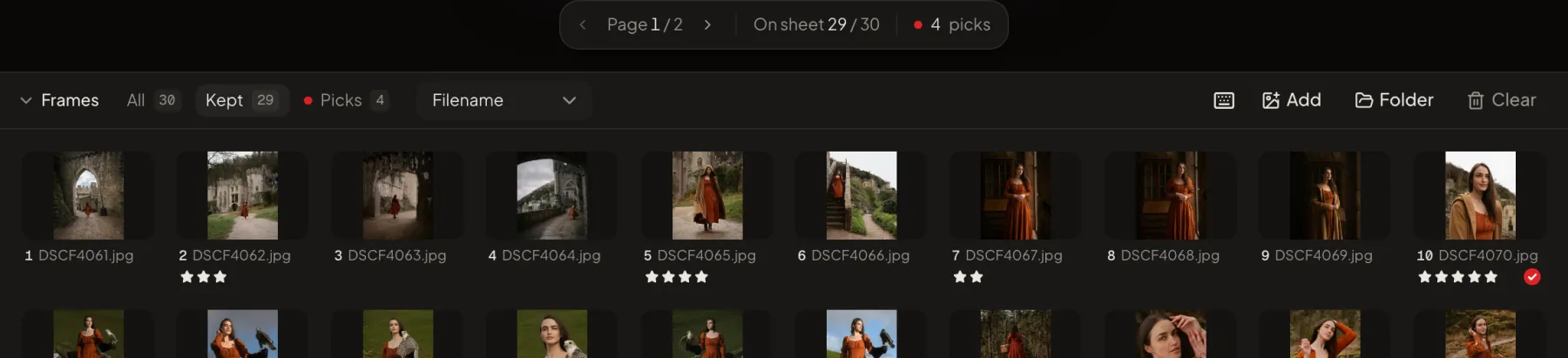
#3: Only watermarked proofs are uploaded. Sharing renders a small proof of each frame on your computer, 2048 pixels on the long edge, and uploads only those. Every proof carries a watermark: your own text or logo if you have one set, otherwise your studio name or the word PROOF across it diagonally. Your originals never leave your device. The client cannot download anything.
#4: Free to make sheets, $24 a month to share them. The sheet maker is free for up to 48 photos per project. Proofing links are on the Studio plan at $24 a month or $192 a year. A gallery lives for 7, 14 or 30 days, and the proofs are deleted when it expires. There is nothing to tidy up later and nothing of the shoot left online. Limits are 20 live galleries, 1,500 frames each and 15 GB of proofs across the account.
Where it does not fit. It is not a delivery tool. There is no download for the client, no store, no album design and no mobile app. If you need the same gallery to deliver the finished files, pick one of the tools below.
Quick comparison table
Here is how all nine tools stack up. "Proofing from" is the cheapest plan that includes client favourites, billed annually where the vendor offers it. "Date; kept" means you can set an expiry date, but the files stay on your account and your storage.
| Tool | Free plan | Proofing from | Client needs | Picks back | Expiry | Uploaded |
|---|---|---|---|---|---|---|
| Contact Sheet Studio | Sheets only | $24/mo (Studio) | Link and password | Flag frames, copy filenames | 7 to 30 days, then deleted | 2048 px watermarked proofs |
| Pixieset | 3 GB | $8/mo | Copy list, CSV | Date; kept | Originals | |
| Pic-Time | 10 GB, then 3 GB | $7/mo; selections $21/mo | Account or email | Lightroom plugin (paid), CSV | Date; kept | Originals |
| CloudSpot | 5 GB | $7/mo | Name and email | Copy filenames | Date; kept | Originals |
| ShootProof | 3 GB | $8.33/mo | Copy filenames | Date; archive fee | Originals, JPEG only | |
| Picdrop | 1 GB | 14.99 € + VAT | Link, optional password | Filter text, Capture One too | Date (Pro); kept | Originals, RAW too |
| Zenfolio | None | $11.50/mo (Pro) | Copy list, CSV; plug-in on Advanced | Date; kept | Originals | |
| SmugMug | Trial only | $44.42/mo (Pro) | Personal link | Lightroom Classic plugin | None | Originals |
| Lightroom album | 5 GB, public links | $11.99/mo | Adobe ID | Filter by Likes in Classic | None | Smart previews or originals |
Prices and limits come from each vendor's pricing page and help centre, read on 25 October 2026. Two of them are messy: CloudSpot's page shows a $3 introductory price for three months next to its regular prices, and SmugMug's page showed two different price sets on the same day. Check before you sign up.
Pixieset
Best for. Portrait and wedding photographers who want one familiar gallery for selection and delivery.
Pixieset is the gallery most clients have already seen. Favourites are on every plan, including the free one, and the proofing features are more thoughtful than the polish suggests.
What stands out.
- Favourites on every plan. Pixieset's help centre never mentions a plan gate for them.
- Per-client lists with a cap. You can create a favourite list for a specific client's email and set how many photos it can hold.
- Notes on a photo. Switch on Favorite Notes and the client can attach a comment to any favourite. Only you and they see it.
- A filename list that works in both apps. Favorite Activity gives you a Lightroom Copy List, with switches to include the file extension and drop the commas for Capture One. There is a CSV export too.
- Download control. Per-set download toggles, five download sizes, and a four-digit PIN per collection.
Pricing. Free with 3 GB. Basic is $8 a month billed annually or $10 monthly with 10 GB. Plus is $16 or $20 with 100 GB. Pro is $24 or $30 with 1 TB. Ultimate is $40 or $50 with unlimited storage. Removing Pixieset branding starts at Basic.
Limitations. Clients give an email before they can keep a list, and two people choosing on one gallery get two lists. You can cap picks but not require a number. The Lightroom plugin uploads from Lightroom Classic but does not bring favourites back. You paste the list into the filter yourself, and virtual copies will not match. Watermarks cover web sizes only, not the original download. Expired galleries are hidden, not deleted, so old jobs keep using storage until you remove them.
Against the four factors. Easy for clients once they have given an email, good on getting picks back, and the best download controls here. Factor #4 is where it costs you: expiry hides, it does not delete.
Pic-Time
Best for. Photographers who want the selection round to run like a form: a required number of picks, comments with replies, reminders, and the result synced into Lightroom.
Pic-Time is the tool photographers on Reddit most often call the best gallery right now, and its Selection Request is the most complete pick workflow on this list.
What stands out.
- Required counts. Set no limit, an exact number, or a minimum with an optional maximum.
- Comments with replies. Clients comment on a photo and you answer in the same thread.
- Reminders. Pic-Time nudges the client and tells you when the request is done.
- Real Lightroom sync. The plugin pulls Selections, Collections and Favorites into folders in Lightroom Classic. Client comments appear in Lightroom's own Comments panel.
- Privacy controls. Private galleries, access codes, scenes hidden per user type, and a Sensitive Security mode that forces an expiry date.
- Apps for both sides. iOS and Android apps for you and your clients.
Pricing. Free with 10 GB, which drops to 3 GB after a few months. Beginner is US$7 a month billed annually or $8 monthly with 20 GB. Professional is $21 or $25 with 100 GB. Advanced is $42 or $50 with unlimited storage.
Limitations. Selection Requests and the Lightroom sync are on Professional and above, so the free and Beginner plans get plain favourites and a CSV. Guests are asked to create an account or give an email when they favourite. Expired galleries go offline but stay on your storage. Photos move to long-term archive after three years, and take 4 to 15 hours to bring back.
Against the four factors. The best on Factor #2 if you pay for Professional. Weaker on Factor #1, because clients are pushed towards an account. Same storage story as Pixieset on Factor #4.
CloudSpot
Best for. Wedding and event photographers who want a cheap gallery that clients find easy, and are happy to paste filenames into Lightroom themselves.
CloudSpot is the budget pick, and the only tool here with a step-by-step proofing recipe in its own help centre.
What stands out.
- Favourites on every plan, including free.
- Multiple lists. Clients can make more than one, or you can pre-create named lists for them to fill.
- A proofing recipe. CloudSpot's help centre walks you through it: watermark the gallery, leave downloads off, let the client press Alert Photographer when they are done, then Copy Filenames and build a finals folder.
- Downloads off by default, with full-resolution, social or custom sizes per folder and a four-digit PIN when you turn them on.
- Favourites from the phone. Clients can favourite from the mobile gallery saved to their home screen.
Pricing. Free with 5 GB and three galleries. The page shows regular prices of $7 a month for Entry (15 GB), $17 for Lite (100 GB), $34 for Pro (500 GB) and $50 for Unlimited, with a $3 introductory price for the first three months and six months free on annual plans. Free and Entry are JPEG only.
Limitations. Clients give a name and email the first time they favourite, unless you already collect it at the door. No note on a specific photo, only a message at the end. No cap or required count. The Lightroom plugin is one way, so picks come back as a clipboard list. The free plan adds Powered by CloudSpot to the cover and caps downloads at 2048 px. One sharp edge: drop back to free with more than 5 GB stored and CloudSpot says it removes all data from the account.
Against the four factors. Cheapest route to a working proofing gallery. Fine on #1 and #2 for simple jobs. Watch the downgrade rule on #4.
ShootProof
Best for. Photographers who sell prints or run contracts and invoices from the same account, and want favourites and watermarks without paying for a higher tier.
ShootProof puts favourites, labels, watermarks and download controls on every plan, free included, and its galleries are white-labelled from the start.
What stands out.
- Labels. Named lists per gallery with an optional cap on each, so an album pick and a print pick can run side by side.
- Finished email. ShootProof can tell you when a client has stopped favouriting.
- A filenames box per visitor on the Gallery Visitors page, ready to paste into Lightroom's filter.
- Automatic archiving of expired galleries, with one-click reactivation.
- Honest advice. ShootProof's own blog tells you to use several digits and no spaces in filenames, and to paste long lists in halves so Lightroom does not freeze.
Pricing. Free with 3 GB. Starter is $9.99 a month or $8.33 billed annually with 20 GB. Standard is $19.99 or $16.67 with 100 GB. Professional is $31.99 or $26.67 with 1,000 GB plus video. Premium is $60 or $50 with unlimited photos.
Limitations. Visitors must enter an email when they favourite or download, even if you did not ask at the door. No note on a specific photo and no required count. The Lightroom plugin uploads only. JPEG uploads only, up to 50 MB. Clients cannot favourite from the home-screen mobile app. Archiving costs $2.99 a month minimum unless you are on Premium.
Against the four factors. Generous free tier and good labels. Factor #1 is the catch: an email is always required. Factor #4 is clearer than most, because archiving has a published price.
Picdrop
Best for. Commercial and editorial photographers whose clients give notes rather than hearts, who proof RAW or TIFF files, and who want German hosting.
Picdrop is built around feedback on the frame. It is also the only tool here that names Capture One and Photo Mechanic in its export.
What stands out.
- Mark-up on the image. Clients can comment, like or vote, set colour markers, and scribble directly on a frame. A retouch brief becomes a drawing.
- Export for any app. Each set has an Export button that produces ready-made filter text for Lightroom Classic, Capture One, Photo Mechanic, Finder and Explorer.
- RAW and TIFF. Picdrop accepts almost every image and video format, with RAW previews and downloads.
- German hosting. Servers in Germany, a data processing agreement in the account, and a stated policy of deleting nothing unless you ask.
- Link with or without a password. No sign-in described for clients.
Pricing. Free with 1 GB and three galleries. Pro is 14.99 € a month with 500 GB, Advanced 39.99 € with 1 TB, Business 99.99 € with 3 TB, all plus VAT. The proofing page quotes Pro at $15.99 a month.
Limitations. No cap or required count. No catalogue plugin and no CSV download, so it is the filter-text method or nothing. Filenames with spaces will not match. The expiry date is on Pro and above. Watermarks go on thumbnails only, so if downloads are on the client gets clean originals. No mobile app described.
Against the four factors. Strong on #1 and #2 for commercial work. Factor #3 depends on you switching downloads off. The free tier is small, but Picdrop is the only one here that promises not to delete anything.
Zenfolio
Best for. Photographers who already run their website and bookings on Zenfolio and want favourites that work across galleries.
Zenfolio has a tidy favourites workflow once you are on the right plan. The catch is that its help centre says favourites are only on the Pro and Advanced plans.
What stands out.
- Named lists across galleries. A client can keep several lists and add photos from more than one gallery to each.
- Send to Photographer. Lists arrive under Shared and Completed tabs, and you can mark one complete.
- Three exports. Download the originals, copy a filename list, or export a CSV.
- Lightroom plug-in on Advanced. It turns the CSV into a Lightroom Classic collection.
- Presets. Favourites and comment permissions can be saved so every new gallery starts right.
Pricing. No free plan. Basic is $7 a month billed annually or $9 monthly. Professional is $11.50 or $23. Advanced is $20 or $40, with unlimited JPEG storage and 150 GB of video.
Limitations. Favourites are Pro and Advanced only, and the Lightroom plug-in is Advanced only. Clients give an email before their first favourite and need a free account to keep named lists. No cap or required count. Expired galleries go private, not deleted.
Against the four factors. Good on #2 at the top tier. Factor #1 has the email and account steps. Factor #4 is the usual hide-not-delete.
SmugMug
Best for. High-volume shooters who never want to delete a gallery and already use SmugMug's Lightroom Classic plug-in.
SmugMug stores unlimited full-resolution JPEGs on every plan. That is its answer to Factor #4, and it is the opposite of everyone else's.
What stands out.
- Unlimited storage. No expiry, no archive, no deletion anywhere in the documentation.
- Events. Each participant gets a permanent personal link, and their hearts land in their own Favorites gallery.
- Sync Photos. The free Lightroom Classic plug-in can pull a client's favourites gallery into your catalogue.
- Layered privacy. Public, unlisted or private, then anyone, password or single-use invite.
Pricing. No free plan, and the 14-day trial has no sharing at all. Prices as shown on 25 October 2026: Direct $24 a month billed annually or $34.80 monthly, Portfolio $28.17 or $42.60, Pro $44.42 or $62.40. A cached copy of the same page showed $20, $23.50 and $37. RAW storage is $10 a month per TB.
Limitations. Favouriting is on the Pro plan only, the most expensive here. Clients can favourite up to 1,000 photos and cannot un-favourite from their Favorites gallery. No filename or CSV export, no cap or required count. Watermarks are not applied to originals, so you must block originals for them to matter.
Against the four factors. Wins Factor #4 outright if you want to keep everything forever. Pays for it on price, and favouriting is locked to the top tier.
Others you will see in the results
Pass Gallery has a Lightroom plugin that syncs client favourites into a Selections folder, but its pricing page was down with an expired certificate when we checked, so it is not in the table. Pixpa and Lightfolio both export favourites as filename lists and start with 1 GB free. Pixellu Galleries gives free galleries that expire after 14 days. Photonesto charges per gallery rather than per month. Picflow is built for art directors reviewing commercial work. Capture One Live shares a session with ratings straight from Capture One, but photographers report its links expire after a month and cannot be extended. Picu is a WordPress plugin for proofing on your own domain.
Getting the picks back into Lightroom or Capture One
Only three tools here put the picks into your catalogue for you: Pic-Time's plugin on a paid plan, SmugMug's Sync Photos, and Lightroom's own shared albums. Everything else gives you a list of filenames. The method is the same whichever tool it came from.
- Copy the list. Pixieset calls it a Lightroom Copy List, ShootProof a Filenames box, CloudSpot Copy Filenames, Zenfolio and Pic-Time a CSV, Picdrop an exported set. In Contact Sheet Studio it is the Filenames button next to each submission.
- In Lightroom Classic, select the folder or collection the shoot lives in. Open the Library Filter bar, choose Text, set it to Filename and Contains, and paste. Lightroom treats each word as a separate term, so the whole list matches at once.
- In Capture One, use Select, then Select By, then File Name List, and paste. Picdrop's export is already in that format. For Pixieset, switch off Include Commas first.
- Check the count. If Lightroom finds fewer images than the client picked, look for filenames with spaces, which break the match, and for virtual copies, which will not be found.
- Mark the result before you do anything else. A colour label, a flag, or a collection named for the client and date. The filter is temporary. The label is not.
Rename before you upload, not after. Picks match on filename, so the names in the gallery and the names in the catalogue must be identical, with no spaces, and ideally with a three or four digit sequence number.
If the client is choosing from a PDF rather than a gallery, the same idea works with frame numbers. Send a numbered contact sheet, the client replies with numbers, and you read the filenames off the sheet.
Which proofing tool fits your work?
The four factors weigh differently depending on what you shoot.
Weddings and portraits. Factor #1 matters most, because your clients are not photographers and will not fight an account wall. Pixieset and CloudSpot are the easiest for clients. Pic-Time is the best if you want required counts and reminders and will pay for Professional.
Commercial and editorial. Factor #2 and #3 matter most. Your clients give notes, your files are RAW, and nothing can leak before the campaign. Picdrop was built for this. Contact Sheet Studio is the option if you would rather the shoot never went online at all, and a proof sheet is often what the art director wants anyway.
High volume. Factor #4 decides it. If you will never delete a gallery, SmugMug's unlimited storage is the honest answer, at the highest price here. If you would rather galleries cleaned themselves up, Contact Sheet Studio's links delete after 30 days and ShootProof's archive has a published price.
Already on Lightroom, occasional proofing. Try a shared album before paying for anything. If your clients will sign in with an Adobe ID, Factor #2 is solved and Factor #4 is free.
The bottom line
The best client proofing software depends on which of the four factors matters most to you.
If you want proofing without hosting the shoot, with no account for the client, watermarked proofs only, and a gallery that deletes itself, that is what Contact Sheet Studio's Studio plan is built for. The sheet maker is free, and proofing links are $24 a month.
If you want one gallery for selection and delivery, Pixieset is the familiar choice and Pic-Time is the structured one. Both have free tiers to try.
If you want the cheapest working gallery, CloudSpot or ShootProof's free plans will do the job for small shoots.
If your clients mark up frames or you proof RAW, Picdrop.
If you never want to delete anything, SmugMug.
If you are already on Lightroom, try a shared album first.
Whichever you pick, settle three things before the first client sees a gallery: whether they need an email, how many they may pick, and when the link dies. Most proofing pain is one of those three left to chance.